Connect Codex CLI or Codex in the desktop app to DGrid AI Gateway using a DGrid Model API Key and a model that supports the Responses API. This guide walks through both routes and verifies the first successful request. Choose either route; the CLI profile and desktop configuration are separate.
The examples use the model ID openai/gpt-6-sol. Use the complete ID shown in DGrid’s model catalog for your account. The base URL is https://api.dgrid.ai/v1, the wire API is responses, and the credential environment variable is DGRID_API_KEY.
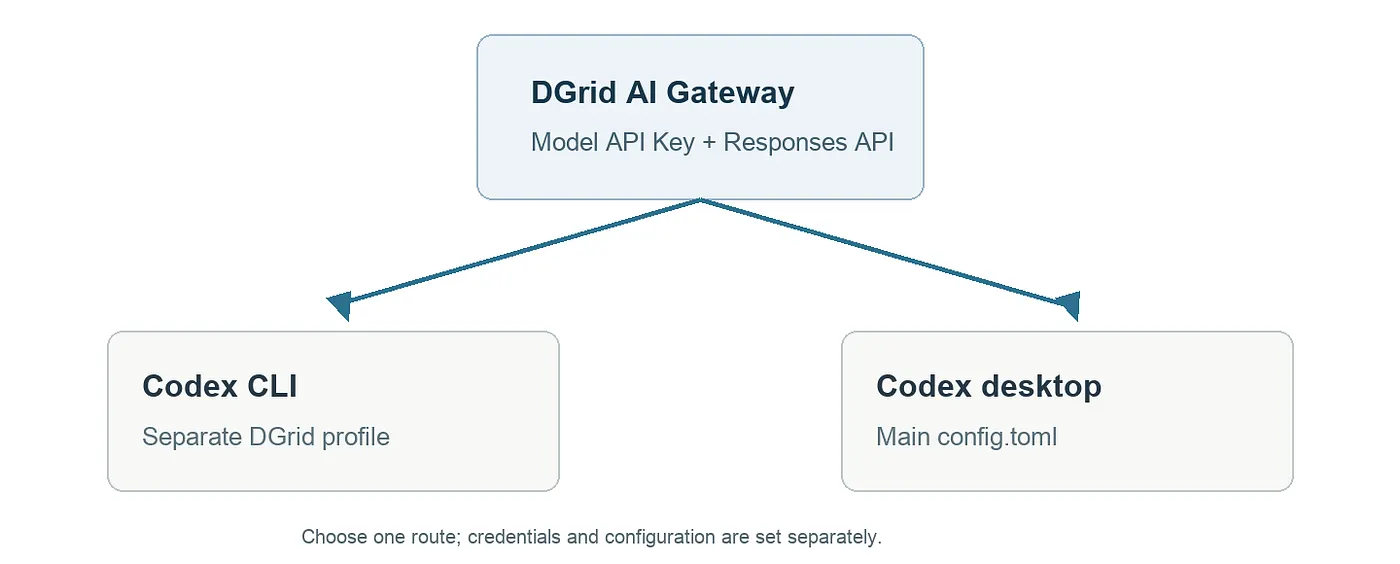
Codex CLI and desktop can connect to DGrid through separate configurations
Before you start
- A DGrid account with credits and access to a model that supports the Responses API.
- A DGrid Model API Key. A Management API Key is for administration and cannot authenticate model requests.
- For the CLI install: Node.js and npm. The desktop app can be configured independently of the CLI.
- Preserve the complete model ID, including its
openai/prefix. Keep the API key out of screenshots and shared files.
The CLI route uses a separate profile and only selects DGrid when launched with --profile dgrid. On macOS, the desktop app reads ~/.codex/config.toml at startup; changing that file changes the default provider for clients that read it. If you need to preserve your existing desktop setup, use another computer for the desktop route.
Route A: Codex CLI
1. Install Codex CLI
Install the current LTS version of Node.js for your operating system if needed; the standard installer includes npm. Open Terminal on macOS or PowerShell on Windows, then check:
node -v
npm -v
Install Codex from npm. Use the matching operating-system commands.
macOS
npm install -g @openai/codex --prefix "$HOME/.local"
export PATH="$HOME/.local/bin:$PATH"
codex --version
The PATH export applies to this terminal. Repeat it in a new terminal, or add it to your shell configuration.
Windows PowerShell
npm install -g @openai/codex
codex --version
If PowerShell blocks npm.ps1, run npm.cmd instead of npm. The separate profile-file format used below requires Codex CLI 0.134.0 or later.
2. Create the DGrid profile
Create ~/.codex/dgrid.config.toml on macOS, or %USERPROFILE%\.codex\dgrid.config.toml on Windows. Add these settings, replacing the example model ID if needed:
model = "openai/gpt-6-sol"
model_provider = "dgrid"
model_reasoning_effort = "medium"
web_search = "disabled"

[model_providers.dgrid]
name = "DGrid"
base_url = "https://api.dgrid.ai/v1"
wire_api = "responses"
env_key = "DGRID_API_KEY"
On macOS, create and open the profile file with:
mkdir -p "$HOME/.codex"
touch "$HOME/.codex/dgrid.config.toml"
open -t "$HOME/.codex/dgrid.config.toml"
Save it as plain text using straight quotation marks. If the file already contains settings, edit matching values and avoid duplicate keys. env_key is the name of the environment variable; it does not store the API key.
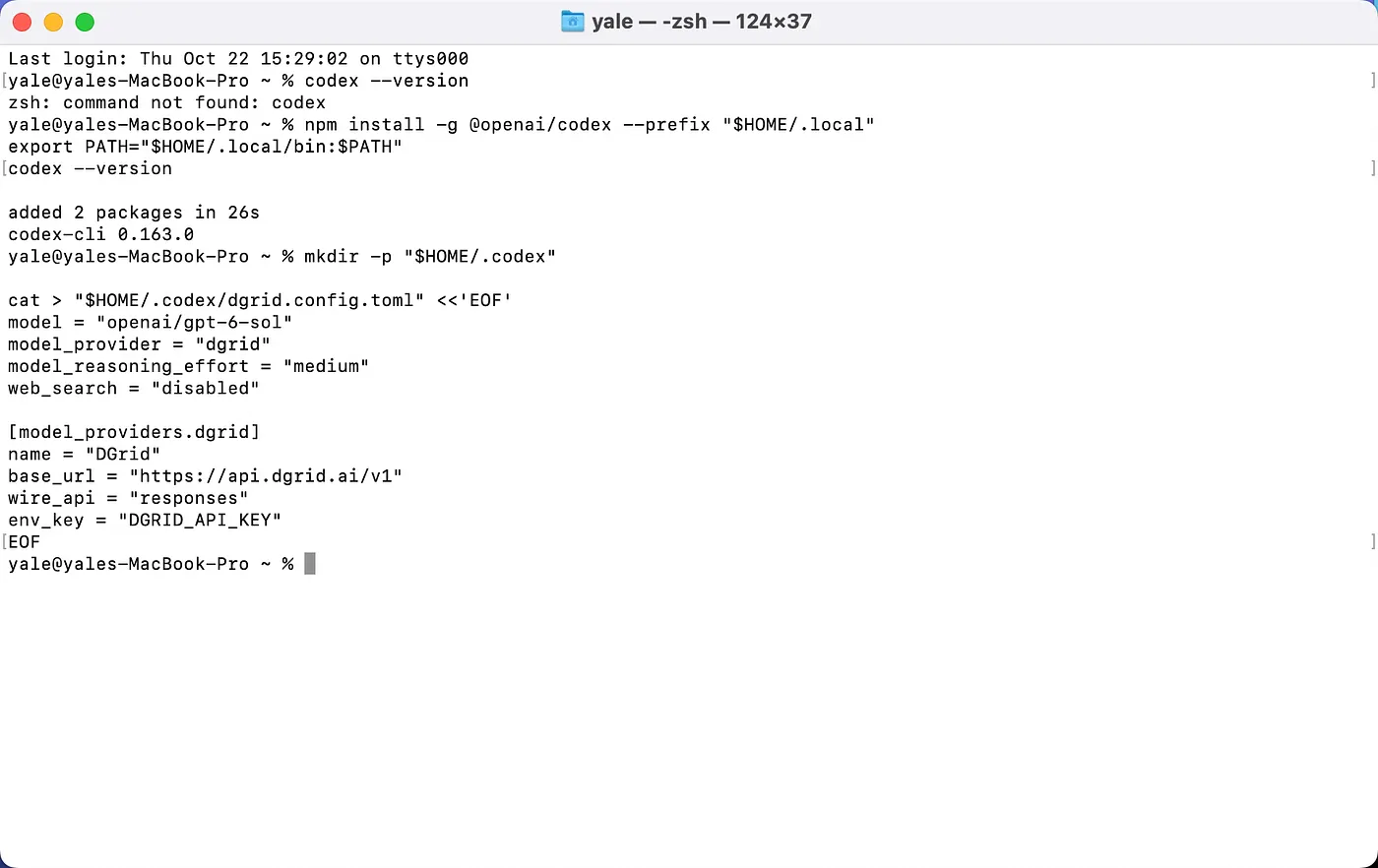
Codex CLI installed and the DGrid profile created
3. Enter the API key
Set the key in the same terminal that will launch Codex.
macOS Terminal with Zsh
export DGRID_API_KEY
read -rs "DGRID_API_KEY?Paste your DGrid API key (hidden): "
Paste the key at the hidden prompt and press Enter. Wait for the terminal prompt to return.
Windows PowerShell
Run the first command, enter the key at the masked prompt, then run the remaining commands:
$dgridSecureKey = Read-Host "Paste your DGrid API key (hidden)" -AsSecureString
$env:DGRID_API_KEY = [System.Net.NetworkCredential]::new("", $dgridSecureKey).Password
Remove-Variable dgridSecureKey
The key is set only for this terminal session. Enter it again in a new terminal.
4. Launch Codex and verify the request
Create a demo folder and launch Codex with the DGrid profile.
macOS
mkdir -p "$HOME/dgrid-codex-demo"
cd "$HOME/dgrid-codex-demo"
codex --profile dgrid
Windows PowerShell
New-Item -ItemType Directory -Force "$HOME/dgrid-codex-demo" | Out-Null
Set-Location "$HOME/dgrid-codex-demo"
codex --profile dgrid
If Codex asks whether you trust the folder, confirm the demo folder you created. Check that the selected model is openai/gpt-6-sol; use /status to inspect the session. Send:
Reply with exactly: DGrid connection successful
The expected response is:
DGrid connection successful
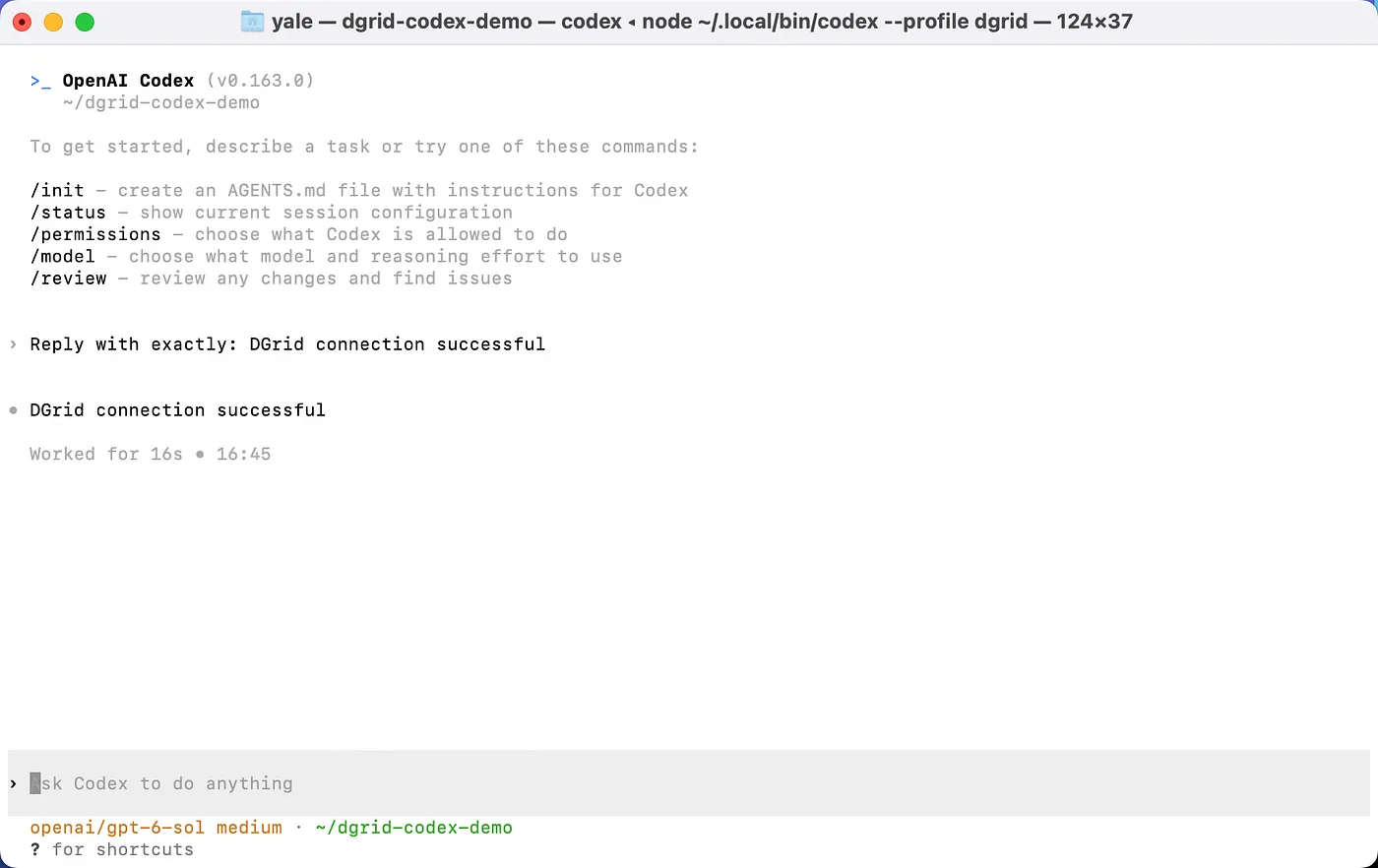
Codex CLI returns the expected response using DGrid
If startup displays Running without the shared background server: --profile requires embedded mode., this describes how the profile session runs. Press F2 to view the warning and Esc to close it; some Mac keyboards use Fn + F2.
Route B: Codex in the desktop app on macOS
The current desktop download is the ChatGPT desktop app, which includes Codex. Existing installations may still use the Codex app name. This walkthrough changes the main user configuration file, so it can affect the default provider for other clients that read that file.
1. Install the desktop app
Get the app from the official download page
. On macOS, open the installer, drag the app to Applications, and launch it. The steps below use /Applications/ChatGPT.app. The initial OpenAI API key sign-in field does not configure the DGrid gateway.
2. Configure the main Codex file
Fully quit the desktop app with Command + Q. Closing its window may leave it running. In macOS Terminal, create and open the main configuration file:
mkdir -p "$HOME/.codex"
touch "$HOME/.codex/config.toml"
open -t "$HOME/.codex/config.toml"
Add the following settings:
model = "openai/gpt-6-sol"
model_provider = "dgrid"
model_reasoning_effort = "medium"
web_search = "disabled"

[model_providers.dgrid]
name = "DGrid"
base_url = "https://api.dgrid.ai/v1"
wire_api = "responses"
env_key = "DGRID_API_KEY"
If the file already has settings, update the matching top-level keys before the first table header such as [section]. Add the DGrid provider table at the end, or update it if present. Keep unrelated settings and avoid duplicate keys or tables. Save as plain text with straight quotation marks. The desktop app reads this main file; a CLI profile file by itself does not select DGrid in the app.
3. Enter the key and launch the app
In the same macOS Terminal window, enter the key without displaying it:
export DGRID_API_KEY
read -rs "DGRID_API_KEY?Paste your DGrid API key (hidden): "
Paste the key, press Enter, and wait for the terminal prompt. Then run this as a separate command in that same terminal:
open -a "/Applications/ChatGPT.app" --env "DGRID_API_KEY=$DGRID_API_KEY"
If your installation is named Codex.app, substitute its actual application path. If Terminal says the app was already running and could not set the environment variable, quit it fully with Command + Q and repeat the launch command.
This passes the key to the app process launched from this terminal. Launching from the Dock does not pass a variable set only in Terminal. For a future launch, enter the hidden key again and run the launch command again.
4. Select a project and test the connection
Create the demo folder from the same Terminal:
mkdir -p "$HOME/dgrid-codex-demo"
In the desktop app:
- Click Choose project and select
dgrid-codex-demoin your home folder. - Enter the prompt below.
- Click the send arrow.
Reply with exactly: DGrid connection successful
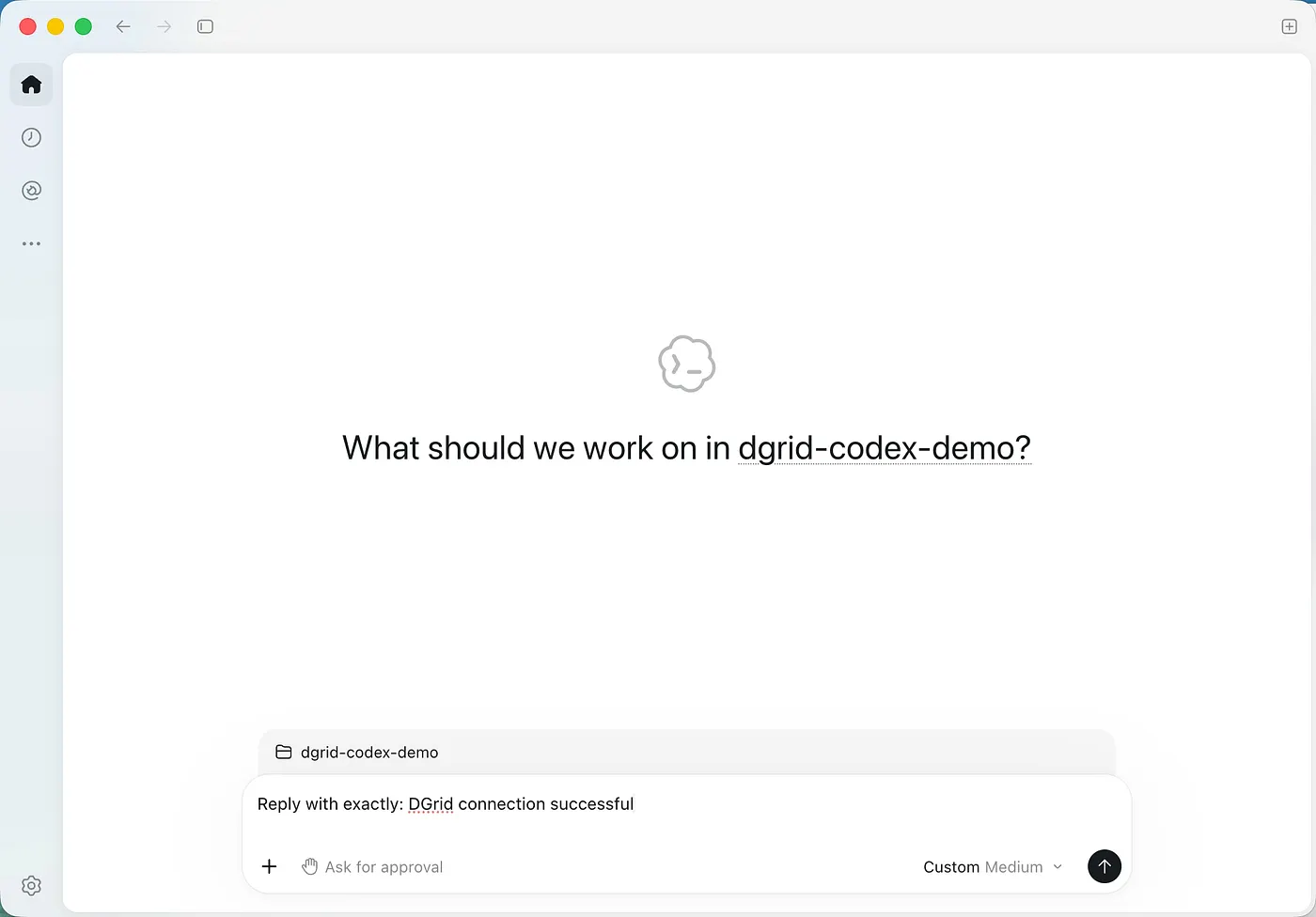
A project selected and the connection prompt ready in Codex
The expected response is:
DGrid connection successful
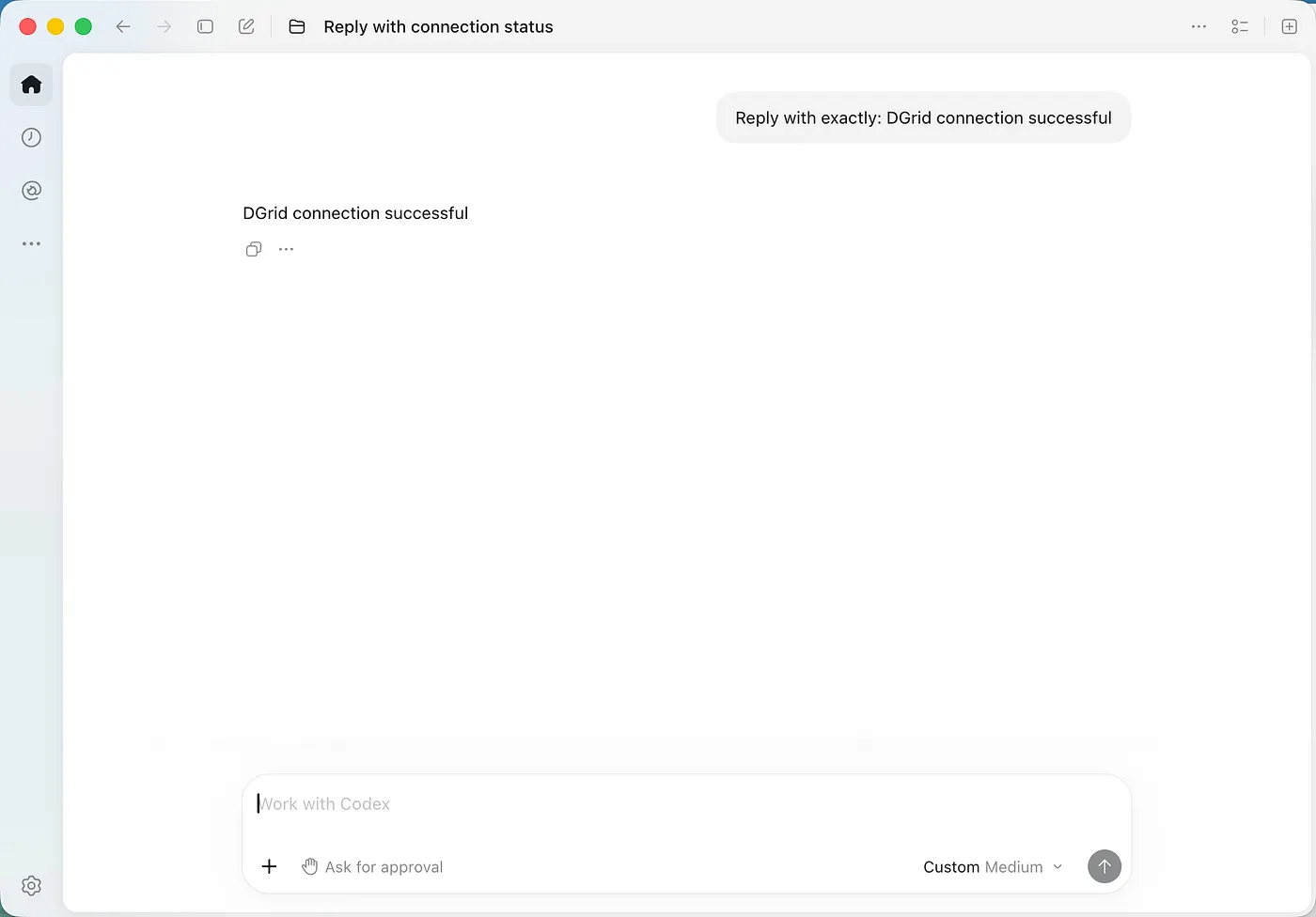
Codex desktop displays the successful model response
Some versions display a label such as Custom Medium. Confirm the full model ID in your configuration and verify the matching DGrid request record to confirm the route.
Confirm usage in DGrid
Open DGrid request history and find the request by time and complete model ID. A completed request is marked Success. Token counts and costs vary with the model and the context Codex sends.
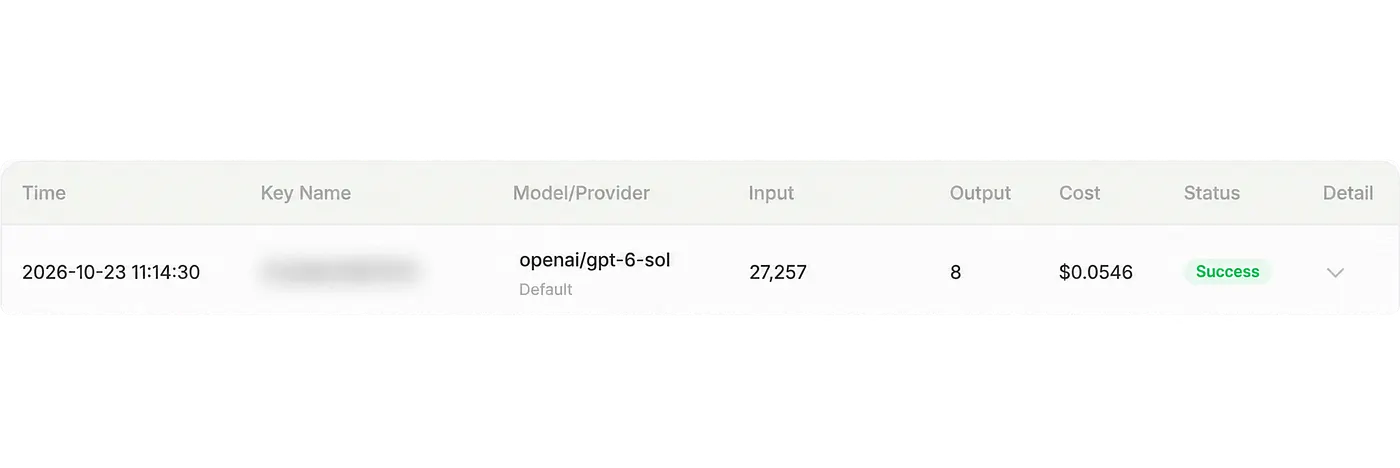
DGrid request history showing the model and Success status
Common connection checks
- `codex: command not found`: Confirm installation completed. On macOS, add
$HOME/.local/binto PATH in the current terminal. - Missing API key: Set the key in the same terminal that launches Codex. The TOML
env_keyvalue names the variable; it does not set its value. - Desktop says the app was already running: Quit fully with Command + Q, then repeat the launch command.
- Desktop launched from Dock cannot authenticate: Quit, enter the key in Terminal, and launch with the
--envcommand above. - Authentication or model access error: Check the DGrid key, credits, Responses API support, and the complete model ID.
- Provider settings are ignored: Use the user-level files described above. A project-level
.codex/config.tomlcannot select a custom provider. - Return to the previous desktop provider: Restore its model, provider, and authentication settings, then fully quit and reopen the app.
This guide covers connecting and receiving a response. Tools, web search, and longer agent tasks depend on the selected model and gateway support. If Codex reports a model metadata or catalog error, ask DGrid for catalog settings that match your Codex version; do not guess a catalog URL.
For all screenshots, detailed troubleshooting, and version-specific guidance, see the complete DGrid Codex integration tutorial .
About DGrid AI
DGrid AI is a decentralized AI smart network dedicated to building an open, transparent, and community-driven decentralized AI network. By establishing a unified smart marketplace and scheduling layer, it provides developers and users with low-cost, verifiable, and trustless access to models and AI Agents.