Connect Claude Code to DGrid with your DGrid API key, the gateway URL, and a Claude model available to your key. This guide covers macOS Terminal first, followed by an alternative setup in the Claude desktop app’s Code tab.
This walkthrough uses anthropic/claude-opus-5.5 as an example.
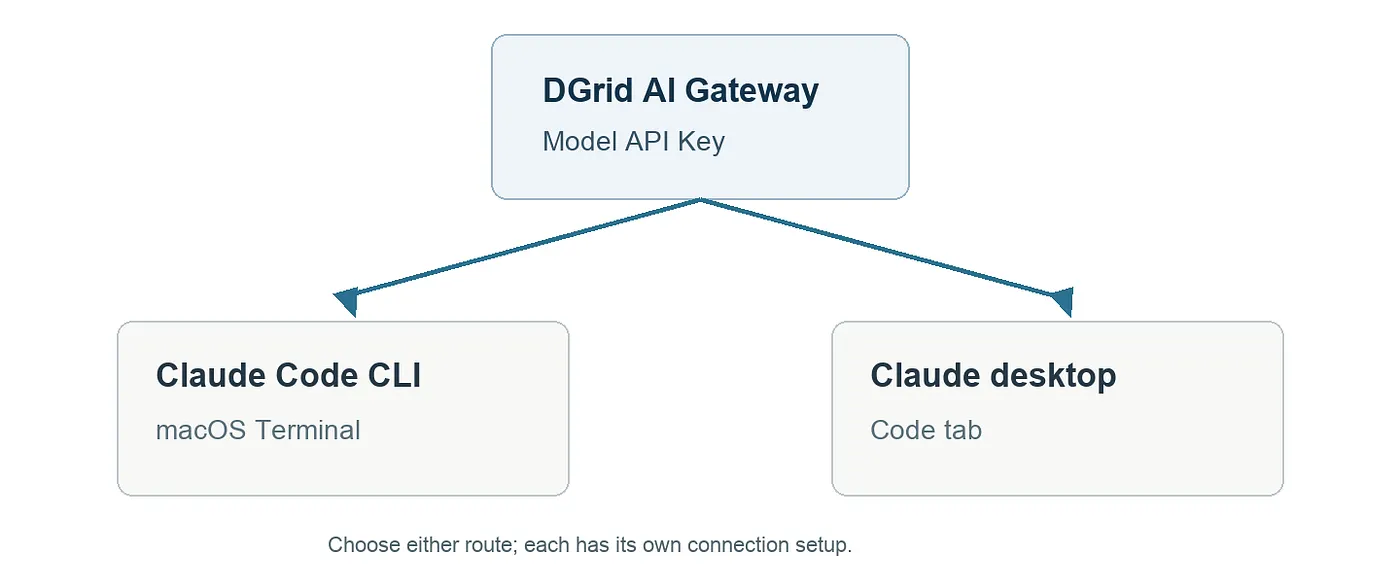
Two ways to connect Claude Code to DGrid
Get the key
Sign in to DGrid , create a Model API Key on the API Keys page , and check that your account has credits and access to the model. Keep the key private. Use the base URL as shown; it does not need an API path appended.
Click Create New Key, give the key a name, then create and copy it. Open DGrid’s model catalog and copy an available Claude model’s complete ID. Enter only https://api.dgrid.ai as the base URL; omit both /v1 and /v1/messages.
Before continuing, check these requirements:
- Use macOS and Zsh for the Terminal commands in this article.
- A Model API Key is required for inference. An administrative Management API Key will not work here.
- Copy the model ID from DGrid’s catalog, including its provider prefix. If you choose a different model, replace the example ID throughout the setup.
- The desktop route can be completed independently of the CLI route.
Route A: Terminal
On macOS, check claude — version first. If Claude Code is absent, install it with one method. The native installer is the shortest route:
curl -fsSL https://claude.ai/install.sh | bash
Open a new Terminal window and run claude — version to verify the installation. If the shell cannot locate the command, run export PATH=”$HOME/.local/bin:$PATH”, then try claude — version again. If the native installer cannot download successfully, use the npm route below. Choose one successful installation method before continuing.
Alternative npm installation
For npm, first check that Node.js 22 or later and npm are installed:
node -v
npm -v
If necessary, install the current LTS release with the macOS installer from Node.js , then reopen Terminal. Install Claude Code under your user directory and check the launcher:
npm install -g @anthropic-ai/claude-code - prefix "$HOME/.local"
export PATH="$HOME/.local/bin:$PATH"
claude - version
This installation does not require sudo. To retain the PATH entry in future Zsh sessions, add the export line to ~/.zshrc.
Configure and launch
In the Terminal where you will run Claude Code, set the gateway and enter the key privately:
export ANTHROPIC_BASE_URL="https://api.dgrid.ai"
unset ANTHROPIC_API_KEY
export ANTHROPIC_AUTH_TOKEN
read -rs "ANTHROPIC_AUTH_TOKEN?DGrid key (hidden): "
The key stays hidden as you paste it. These exports belong to the current shell session; in a new Terminal window, configure them again or use the project settings below.
After pasting the key and pressing Enter, use the same Terminal window to start Claude Code:
mkdir -p "$HOME/dgrid-claude-demo"
cd "$HOME/dgrid-claude-demo"
claude - model "anthropic/claude-opus-5.5"
If Claude Code asks you to trust the folder, confirm the path you just created. Inside Claude Code, run /status.
Confirm:
- Anthropic base URL: https://api.dgrid.ai
- Auth token: ANTHROPIC_AUTH_TOKEN
- Model: anthropic/claude-opus-5.5, or the complete ID you selected
Press Esc to return to the chat. Send Reply with exactly: DGrid connection successful and wait for DGrid connection successful. DGrid’s request history provides a second place to confirm the request.
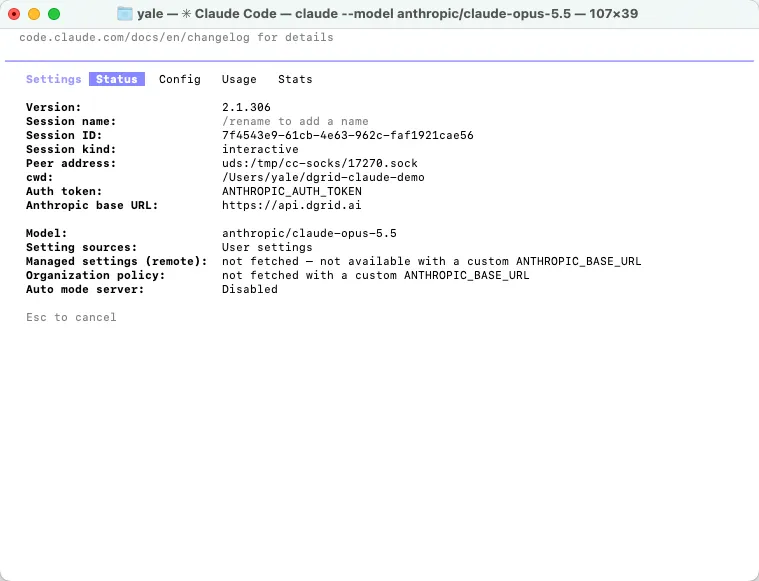
Claude Code status after connecting to DGrid
For a usage check, find the matching model and request time in DGrid’s request history. Look for a Success result. Token usage and charges vary with the request.
Optional project settings
To reuse this connection in a project, first exclude .claude/settings.local.json in that project’s .gitignore. Then create or update the local settings file with the following fields:
{
 "env": {
 "ANTHROPIC_BASE_URL": "https://api.dgrid.ai",
 "ANTHROPIC_AUTH_TOKEN": "<your-dgrid-api-key>",
 "ANTHROPIC_API_KEY": ""
 },
 "model": "anthropic/claude-opus-5.5"
}
Replace the placeholder with your key and merge the fields into any existing configuration. The file contains a credential, so keep it private. From a new terminal, enter the project, launch claude, and confirm the effective connection with /status.
Route B: Claude desktop
Desktop inference has its own connection settings. The exports used for the CLI do not configure this route.
Install the Claude desktop app . On macOS, enable Developer Mode from Help → Troubleshooting, then open **Developer → Configure Third-Party Inference…**.
In Connection, use these settings:
- Inference provider: Gateway
- Credential kind: Static API key
- Gateway base URL: https://api.dgrid.ai
- Gateway API key: your DGrid key
- Auth scheme: bearer
Apply the changes and reopen the app.
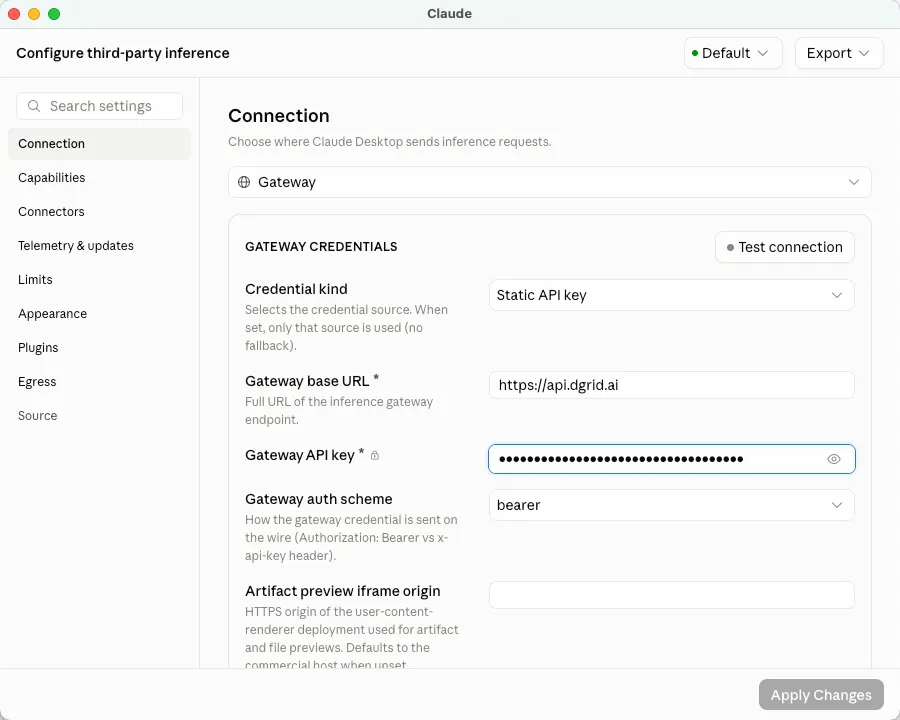
DGrid connection fields in Claude desktop
Leave Artifact preview iframe origin unchanged for this setup. You can use Test connection to inspect connectivity. If the Developer menu vanishes after applying the settings, enable Developer Mode again from the Help menu.
In Code:
- start a new session and select This computer if an environment selector appears
- open the model picker and select anthropic/claude-opus-5.5, or your chosen available Claude model
- click Choose a folder and select dgrid-claude-demo; if you skipped the CLI route, create and select a new project folder
Send Reply with exactly: DGrid connection successful. Check that the response appears under the intended model.
Common connection checks
- Missing CLI command: Run type -a claude. For the npm installation above, check PATH and try “$HOME/.local/bin/claude” — version directly.
- Wrong key or gateway: Review the provider entries in ~/.claude/settings.json, .claude/settings.json, and .claude/settings.local.json. A settings file can override shell exports. Restart Claude Code after changing the relevant fields, then inspect /status.
- Authentication or model failure: Recheck the Model API Key, credits, model access, and complete model ID.
- Desktop test failure: Open the error details and inspect the URL, HTTP status, response, and probedModel when shown. A connection test can probe a different model from your chat selection.
- Expected model is missing: Revisit the desktop gateway settings and confirm that the connection was applied and that the key can access the model.
For screenshots, local settings, and error-specific fixes, read the complete Claude Code integration tutorial .
About DGrid AI
DGrid AI is a decentralized AI smart network dedicated to building an open, transparent, and community-driven decentralized AI network. By establishing a unified smart marketplace and scheduling layer, it provides developers and users with low-cost, verifiable, and trustless access to models and AI Agents.